 Agent Standup
Run several Claude Code sessions in parallel
One Claude Code session is fast. Three or four at once is faster, until two of them edit the same file, one has been waiting on a permission for twenty minutes without you noticing, and your usage limit runs out by lunch. This page puts together what Claude Code offers to run sessions side by side, from its official documentation, and how to keep track of all of them.
1. Give each session its own copy of the code: worktrees
Two sessions in the same folder edit the same files, and Claude Code has no lock to stop that. The documented answer is a git worktree per session: a separate checkout of the same repository, on its own branch (https://code.claude.com/docs/en/worktrees).
claude --worktree feature-auth--worktree <name>(or-w) creates.claude/worktrees/<name>/at the root of the repository, on a new branchworktree-<name>, and starts the session there. Without a name, Claude Code makes one up. The repository needs at least one commit.- A pull request to review:
claude --worktree "#1234"(keep the quotes). - Your
.envand other untracked files are not in a new worktree. List them in a.worktreeincludefile at the root (same syntax as.gitignore) and they are copied in. - Cleaning up: when you leave a session whose worktree has no changes, it is removed with its branch; if there are changes, Claude Code asks whether to keep them.
- By hand, the classic way works too:
git worktree add ../project-feature-a -b feature-a, thencd ../project-feature-a && claude.
2. Start and switch between sessions
- Agent view (
claude agents, a research preview since Claude Code 2.1.139) lists your sessions grouped by Needs input, Working and Completed.claude --bg "your prompt"starts a session in the background;/bginside a session sends it there; Enter on a row attaches to it again (https://code.claude.com/docs/en/agent-view). - The desktop app: + New in the sidebar (Cmd+N or Ctrl+N), Ctrl+Tab to switch, and a split view to see two side by side (https://code.claude.com/docs/en/desktop).
- VS Code: "Open in New Tab" from the Command Palette, one tab per session. A blue dot on a tab means a permission is waiting, an orange one that Claude finished while the tab was hidden (https://code.claude.com/docs/en/vs-code).
- In terminals: one terminal tab or tmux pane per session, each in its own worktree.
3. Parallel inside one session: sub-agents and agent teams
You don't always need separate sessions. A session can hand work to sub-agents, which run in parallel and report back to it. Agent teams go further: teammates with their own context who message each other, coordinated by a lead session. They are experimental and off by default (set CLAUDE_CODE_EXPERIMENTAL_AGENT_TEAMS=1); teammates show in the same terminal, or in split panes inside tmux or iTerm2 (https://code.claude.com/docs/en/agent-teams). Teammates are not put in separate worktrees: the documentation advises giving each one different files to own.
4. Watch your usage
Every session counts against the same plan. The agent view page says it plainly: running ten agents in parallel uses your quota roughly ten times as fast as running one (https://code.claude.com/docs/en/agent-view). Start with two or three sessions, keep an eye on your 5-hour and weekly limits, and use a smaller model for routine work.
5. Find a session again
claude --continuereopens the latest session of the current folder;claude --resumeopens a picker, where Ctrl+A shows every project and Ctrl+W every worktree of the repository (https://code.claude.com/docs/en/sessions).- Name sessions as you start them,
claude -n auth-refactor, or later with/rename: the picker is much easier to read. - Don't resume the same session in two terminals at once: both write to one transcript. Use
--fork-sessionto make a copy instead.
6. See every session at once, and which one needs you
This is the part Claude Code leaves to you: knowing, at any moment, what each session is doing and which one is waiting. Agent Standup shows every Claude Code session on your computer, wherever it was started (terminals, worktrees, VS Code, the desktop app), as a live team call.
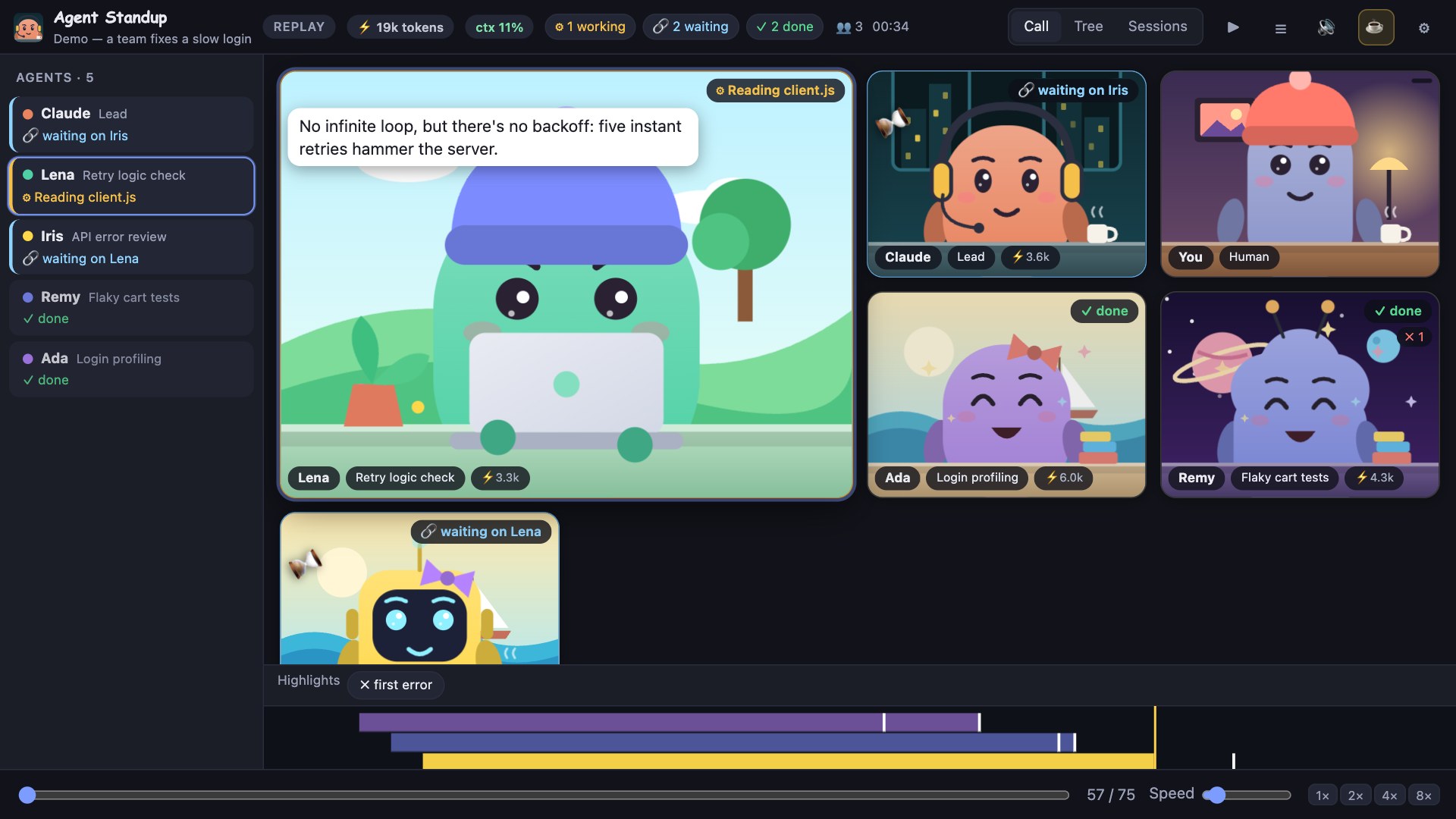
- A board of all sessions, sorted by what needs you first: needs you, your turn, working, waiting on sub-agents, idle.
- "Needs you", with the question. A session waiting on a permission or a question is flagged, with what it asks and for how long; in the call, a red line names another session that waits for you.
- Your plan limits at the top: how much of your 5-hour and weekly windows you have used, read from files already on your computer.
- In VS Code, live counts in the status bar and a notification when a session starts to wait for you. In the terminal, the
agent-standup-bandplugin shows a line above your prompt naming the session that waits. - Codex and Mistral Vibe sessions too, on the same board.
- No setup, zero tokens. It only reads the session files Claude Code already writes in
~/.claude/projects; nothing leaves your computer.
Try it
- In VS Code or Cursor: search "Agent Standup" in the Extensions view, then open the call from the Activity Bar.
- In a terminal, without installing anything (Node 18 or later):
npx @double_geste/agent-standup@latest --open. - As a desktop app for macOS, Windows and Linux, from https://agent-standup.com
Questions
How many sessions should I run at once? The documentation gives no number. Your plan's limits and your own attention are the real cap: each session that stops to ask you something waits until you look.
Do worktrees isolate everything? No. They share the repository's .git folder, so branches and commits are shared, and anything outside the repository (a database, a port, a running dev server) is still one thing for all sessions.
Is it different with agent view? Agent view starts and lists sessions; Agent Standup shows what they are doing inside: who works on what command, who waits on whom, and the real output on a shared screen. They work well together.